R4 - User Guide - First-time setup
Congratulations on receiving your new pair of R4! Use this guide to learn about pairing R4 with your preferred device and charging the battery.
What's included in the box
- R4 headphones
- USB-C cable
- Owners manual
- Warnings Folder
Before getting started
The headphones will likely have some existing battery charge, however it is recommended to fully charge R4 before using it for the first time.
Turning R4 on or off
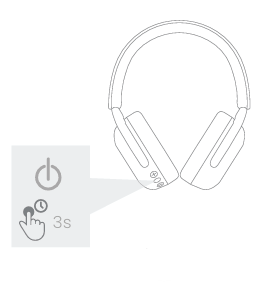
Press (hold) the button for 3 seconds until the white light is blinking and you hear "On".
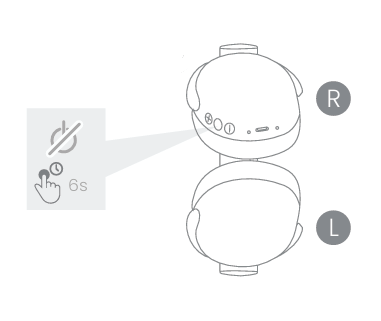
If you want to turn off your R4 then press (hold) the button for 6 seconds until the white light turns off and you hear "Off".
Pairing with a device
Hold the button on your R4 for 3 seconds to turn it on. The white flash means that your headphones are now turned on and ready to pair.
Open the Bluetooth settings on your device and wait for R4 and the device to locate each other, then select Sudio R4 when it appears in the list. Once connected, you will hear "Connected".
Charging the battery
R4 has one built-in battery in the headphones.
R4 is charged with a USB-C cable. It is recommended to use the USB-C cable that's included in the package, but the headphones may be compatible with third-party USB-C cables as well.
R4 - User guide - Connectivity & Pairing
Pairing R4 with a device
- Hold the button on your R4 for 3 seconds. The white flash means that your headphones are now turned on and ready to pair.
- Go into the Bluetooth settings on your device.
- For iOS (iPhone), go to the Settings app and select Bluetooth.
- For Android, go to the Settings app, then select Connections followed by Bluetooth.
- For Windows 11, click on the Start button, select Settings followed by Devices, and then Bluetooth and other devices.
- For macOS, go to the System Preferences app and select Bluetooth.
- Locate and select Sudio R4 in the Bluetooth list on your device.
- Your Sudio R4 is now paired with your device.
- To turn off your headphones, hold the middle button for 5 seconds. The white light will turn off, this means the earphones are now turned off.
Device compatibility
R4 uses Bluetooth version 6.0 which is compatible with a wide range of Bluetooth devices. The paired device does not need to be the same version, but similar versions are more likely to maintain a strong connection.
Signal interference
Some wireless devices may interfere with each others' signals, such as WiFi-routers, smartwatches, other Bluetooth devices, etc. If they operate within the same frequency, you may experience interference such as dropped sound and glitching. The easiest way to locate the cause of interference is by maintaining one connection between devices at the same time or taking your R3 and connected device outdoors to see if the interference clears.
R3 can be up to a maximum of 10 meters (49 ft) from the paired device, but the connection may break if they are blocked by walls or similar objects.
R4 - User guide - Touch controls
R4 has a touch panel that allow you to control certain features on your paired device.
Music/video playback
- Left earbud (L)
Tap once: Volume down
Tap twice: Previous track
Tap three times: Play/Pause - Right earbud (R)
Tap once: Volume up
Tap twice: Next track
Tap three times: Play/Pause
Incoming phone calls
- Tap once to answer or end a call
- Press and hold for 2 seconds to reject an incoming call
- Press and hold for 2 seconds to activate voice assistant
Power
- Press (hold) the button for 3 seconds until the white light is blinking and you hear "On".
- Press (hold) the button for 6 seconds until the white light turns off and you hear "Off".
R4 - User guide - Factory reset
If R4 starts behaving unexpectedly, or if you wish to remove the connection between R4 and the connected device, you can perform a factory reset to restore your Sudio R4 to its original settings. This will reset the connection between your paired devices.
- Turn off the R4 by pressing (holding) the button for 6 seconds until you hear "Off".
- Press (hold) on the button again for 8 seconds until the light blinks white twice and you hear 2 clicks.
- The reset is now complete.
When you hear 🔈 Ready to pair, proceed to pair R4 with your Bluetooth device.
R4 - User guide - Battery levels and management
R4 has one built-in battery in the headphones.
Charging and play times
The headphones can be used for approximately 40 hours on one charge (at 50% volume).
The battery takes less than 2 hours to fully charge.
R4 does not support quick charge.
Charging methods
R4 can be charged with a USB-C cable included in the packaging.
We recommend using the Sudio cable included in the package, however, other third-party USB-C cables may be compatible too.
Battery level indicators
Headphones (no cable inserted)
- 10–99% battery = Solid white
- 0–10% battery = Blinking white
Headphones (with cable inserted and charging)
- Amber light (blinking) = Charging (0–99%)
- Amber light (solid) = Fully charged (100%)
Battery level can also be viewed via your connected device (iOS/Android) or by using third-party battery level apps, depending on your phone model.
R4 - User guide - Download PDF version